Osoumen C700 (Sampler That Emulates The Super Nintendo's Sound Source) WiN Mac [FREE]
Software Sampler plugin for AU/VST and MacOSX/Windows This is a software sampler that emulates the Super Nintendo's built-in sound source. It supports importing AIFF (Mac only) and WAV files with loop points set. It supports reading and writing raw BRR in AddmusicM format. It is possible to play the
资源介绍
FREE | Win Mac VST AU | 9.4 MB
Software Sampler plugin for AU/VST and MacOSX/Windows
This is a software sampler that emulates the Super Nintendo's built-in sound source.
It supports importing AIFF (Mac only) and WAV files with loop points set.
It supports reading and writing raw BRR in AddmusicM format.
It is possible to play the actual chip in sync with the GIMIC equipped with an SPC module .
When USB hardware is recognized, an icon will appear in the bottom right corner of the UI.
Operating environment
macOS version
Mac (Intel, Apple Silicon) running macOS 10.11 or later
Audio Units or VST2.4 compatible host application
Windows version
A host application compatible with VST2.4 on Windows Vista or later (32/64bit)
Operation confirmed host
macOS
Logic Pro 10.7 (Intel,Apple Silicon) (macOS Big Sur 11.6.1)
Digital Performer 8 (32/64bit) (10.8.5)
Digital Performer 9.12 (32/64bit) (10.10.5)
Windows
Cubase 10 (32/64bit) (Windows 10)
Differences between the Mac and Windows versions
The Mac version can load AIFF, WAV, and SD2 waveform data, but the Windows version can only load WAV (there is a bug).
The Mac version will detect when the USB hardware is plugged in or unplugged during operation, but the Windows version only checks when the plugin is launched.
The Mac version is probably more stable.
Functional Description
Various waveform data can be directly read.
Supports AIFF (Mac only), WAV, SPC and AddmusicM format brr files.
Up to 128 waveforms can be registered.
Supports program change, pitch bend, and modulation wheels.
This is set for each MIDI channel.
The maximum sampling rate of the playback waveform is 120kHz.
Normally, the waveform number corresponds to the program change.
Alternatively, multiple waveforms can be treated as one bank.
Up to four banks can be used in total, and each bank can be set to multi-sample mode.
When a bank is set to multi-sample mode, if you select one of the waveform numbers in the bank with a program change, the corresponding bank will be selected.
The waveform HighKey and LowKey settings are only effective in multi-sample mode.
Common Settings
Make settings common to all MIDI channels.
Track 1-16
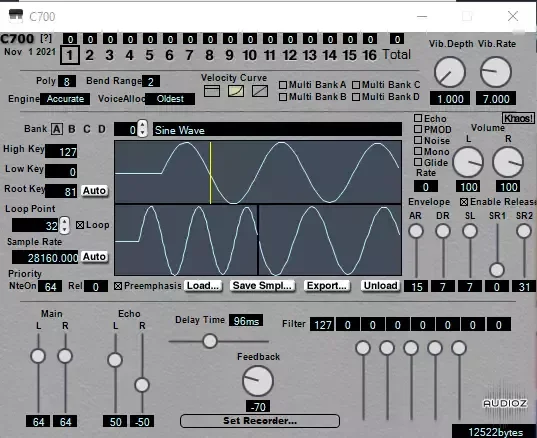
1-16 Indicates the sounding status and selection status of the MIDI channels.
Engine
Old: This mode is for compatibility with older versions.
Relaxed: Waveform memory can be used without capacity restrictions. Polyphony can be increased to 16 voices. Some specifications are different from the actual machine.
Accurate: Uses Blargg's Audio Engine for a more precise emulation. In this mode, the "Poly" setting is ignored and is fixed at "8".
VoiceAlloc
Oldest: When a note is pressed, older notes are silenced. This makes for a more natural sounding performance.
SameCh: When a note is on, the same channel is reserved as a priority. This may result in a smaller recorded performance data.
Poly
Sets the overall polyphony (1-16).
Bend Range
Sets the pitch bend range.
Velocity Curve
Sets the velocity curve to either a constant value, a quadratic curve, or a linear curve.
MultiBank AD
The C700 has four banks that can handle multiple waveforms as a single tone.
The bank that is set to On here will be set to multisample mode.
The LowKey and HighKey settings will be enabled and the sample key mapping will be performed.
This is useful when assembling a drum kit.
If key ranges overlap, the range of the later-numbered sample takes precedence.
For banks that are not set to multi-sample mode, the waveform number = program change number.
Vibrato Depth, Rate
Adjusts the amount of modulation wheel (CC:1).
Currently, this is common to all MIDI channels.
Settings for each waveform
Spoiler:
Allows you to edit the current timbre settings of the selected track.
Bank
Sets the bank to which the waveform belongs.
When you select a bank in multi-sample mode, all waveforms in the same bank are treated as the same tone.
If you select a bank that is not in multi-sample mode, the waveform number = program change number.
Waveform Number/Label
The waveform number and name selected by program change are displayed.
Low Key, High Key
Set the lower and upper pitch limits.
If you are not in multi-sample mode, this setting will be ignored.
Root Key
Sets the reference pitch of the waveform.
C4=60.
It has an auto-detection function.
Loop Point / Loop
Sets the waveform loop on/off and loop points.
Due to the brr specifications, it is limited to 16 sample units.
Sample Rate
Sets the sampling rate when playing at the standard pitch.
It has an auto-detection function.
Priority
Sets the priority. If the maximum polyphony is exceeded when a note is pressed, the oldest note with the lowest priority will be muted.
NteOn(NoteOn)
The priority given to the voice at note-on.
Rel (Release)
The priority that the voice is set to on note-off.
Waveform Display
Displays the currently selected waveform and the loop start and end points.
Pre-Emphasis
When this is on, a high-frequency emphasis filter will be applied when loading WAV or AIFF files.
This process compensates for the attenuation of high frequencies caused by DSP processing at the time of sound production, allowing the sound quality to approach that of the original waveform.
If this processing causes the waveform to clip, it will automatically be normalized.
Load
Loads the waveform data into the displayed number.
You can also load files by dragging and dropping them.
In addition to AddmusicM format (.brr), it also supports AIFF (Mac only), WAV, and SPC.
If you load stereo data, it will automatically be converted to mono data.
If loop points and key information are set for WAV or AIFF files, they will be reflected.
When a file whose loop length is not a multiple of 16 samples is loaded, the sampling rate will be automatically converted so that it is adjusted to 16 sample units.
Waveform files in the proprietary format (.brr) saved in older versions can only be read in the Mac AU version.
Waveform files can only be loaded up to a maximum of 116480 samples.
The sampling rate will be automatically detected when loading a .brr file (without a .smpl file) or .spc.
Save Smpl...
Saves the displayed waveform data in raw brr format.
When you save it, a .smpl file with the same name will be created in the same location.
The tone information is saved, so please do not move or delete it.
Export...
Saves the currently displayed waveform or bank in FastTrackerII tone data format (XI format).
In the case of a tone set to multi-sample mode, it will be output as a tone containing multiple waveforms.
Unload
Discards the waveform being displayed.
Echo
Turns echo on when the waveform is played.
PM
When the waveform is sounding, the pitch modulation register is turned on.
Pitch modulation is frequency modulated by the output of the previous voice channel.
To control the modulation source ch, fix the pronunciation voice channel by turning on "Mono".
Noise
Turns noise on when the waveform is sounding.
The noise frequency is common to all channels, so if multiple noise setting tones are played, the frequency that was last sounded will be set.
Mono
When set to On, the waveform will always be played as a single note.
The set voice always reserves a fixed voice channel. 1-8MIDIch corresponds to 1-8 voice channels, and 9-16MIDIch corresponds to 1-8MIDICh.
Also, the second and subsequent notes will not be played with a key-on (legato).
Glide
When this is turned on, the portamento effect is obtained.
Rate
Sets the portamento speed.
Volume
Sets the volume at which the waveform sounds.
A negative setting will result in reverse phase.
AR,DR,SL,SR1,SR2
This sets the hardware envelope.
During key-on, the SR of SR1 is set, and after key-off, it switches to the value of SR2.
Enable Release
If set to off, the key will immediately release without transitioning to SR2 when the note is released.
Khaos!
Generates a random waveform.
Echo Settings
Spoiler:
Configure the settings for the built-in echo. Common to all channels.
Main
Sets the main volume.
If you make it negative, it will be inverted.
Echo
Adjusts the volume of the echo component.
If you make it negative, it will be inverted.
Delay Time
Sets the delay time.
Feedback
Sets the amount of feedback.
If you make it negative, it will be inverted.
If it is set too high, oscillation may occur.
Filter
Sets the filter applied to the wet sound.
In addition to directly entering numerical values (-128 to 127),
You can also set it visually using the EQ sliders.
RAM Simulation
Displays all waveforms that are loaded and the total memory consumed by echo usage.
The memory that can be used on the actual Super Famicom is up to 64kB, including drivers and sequence data.
If the capacity exceeds the capacity of the actual device, it will be displayed in red.
If something goes wrong when the text is in red, please reload the plugin.
Recording of the performance
Spoiler:
Set a section and play that range to record your performance. You can save it in spc or rom format. Click the "Set Recorder..." button at the bottom of the main screen to open the settings screen. If this is your first time using the software, a message will appear prompting you to load the performance code, so obtain "playercode.bin" from the same page as the distribution site ( http://picopicose.com/software.html ) and drag and drop it onto the screen. If it is loaded successfully, the following screen will be displayed.
Save Path
When recording is finished, the file will be saved in the folder you set here.
Save as *.spc
Check this box if you want to write an spc file.
It is played using a timer set to a 1/16000 second period inside the APU, so it is recorded with a resolution of 62.5us.
Due to the 64KB limit for spc files, if the song is long or uses a lot of waveform memory, the end of the section may not be output.
Save as *.smc
Check this if you want to export a file in rom format.
Since it is played back using the horizontal sync interrupt, it is recorded with a resolution of 1/15734 seconds for NTSC and 1/15625 seconds for PAL.
You can record up to the size that can be stored on a 32Mbit ROM.
smc Format
Select whether the output rom file will be NTSC or PAL.
NTSC and PAL have different recording resolutions.
PlayerCode
If playercode.bin is loaded correctly, it will show "Valid".
You can update playercode.bin by clicking the Load button.
The above settings are saved in the initial settings file, and the previous settings remain when the plug-in is started a new time. The initial settings file is saved in "~/Library/Application Support/C700/C700.settings" on macOS, and in "[Home Folder]/AppData/Roaming/C700/C700.settings" on Windows.
Record Start Position [ppq]
Sets the position where recording will begin.
Click Set to set the current position of the song pointer.
Loop Start Position [ppq]
Sets the position of the loop point.
Click Set to set the current position of the song pointer.
Record End Pos [ppq]
Sets the position where recording will end.
Click Set to set the current position of the song pointer.
Game Title
Sets the game name that will be set in the spc or smc file.
Up to 32 characters can be set in an spc file, and up to 21 characters can be set in an smc file.
Song Title for spc
Set the song title to be embedded in the spc file. You can set up to 32 characters.
Name of dumper for spc
Sets the SPC producer information to be embedded in the spc file. Up to 16 characters can be set.
Artist of Song for spc
Sets the composer information to be embedded in the spc file. Up to 32 characters can be set.
Comments for spc
Sets the comment to be embedded in the spc file. You can set up to 32 characters.
Repeat num for spc
Set this to determine the playing time of the spc file. Set how many times to loop the time from the loop start to the end.
Fade milliseconds for spc
Set the fade-out time [milliseconds] after playback ends in the spc file.
Tips for making it sound good
The total of all parts must not exceed 8 notes.
The total waveform + echo memory is kept to about 40kB.
It is better to truncate the waveform than to reduce the sampling rate.
Use key splits for a wide range of tones.
Set up your echo carefully.
The sampling rate of the waveform can be low except for the highest note or two.
If you record the note A, the pitch will be a multiple of 440Hz, so one cycle will be an integer number of samples.
To make a nice loop, use a tuner or something similar to adjust the pitch as accurately as possible.
相关推荐
音源乐器
Native Instruments Massive XL v2.0.0-bobdulev2.0.0
音源乐器
LennarDigital Sylenth1 v3.075 FIXED-R2Rv3.075
音源乐器
Tribe Instruments Dimension (Stereo Widener) v1.1.1 VST3 AU AAX WiN MAC [FREE]v1.1.1
音源乐器